Learn how to use Ancestry.com’s MyTreeTags to manage genealogy research projects and keep your family tree organized.
At RootsTech 2019 Ancestry announced several tools that help researchers: MyTreeTags and ThruLines were two of the most useful additions. These features are no longer beta — they are fully integrated into Ancestry.com and ready to use.
I was especially interested in the MyTreeTags feature. MyTreeTags gives users an easy way to tag or label individual ancestor profiles to improve organization and manage research tasks.
I prioritize clear organization and project management in my genealogy work, and MyTreeTags fits smoothly into that workflow.
Why MyTreeTags?
First, what is a “tag”?
A tag is simply a label. When you tag an ancestor, you attach a descriptive label to that person’s profile.
If you’re unsure what label to use, read on for examples and ideas.
MyTreeTags lets you add one or more tags to any ancestor profile in your family tree, helping you track verification status, research priorities, or thematic groupings.
A Tag = A Label 📝
Consider this: you find an ancestor you want to add to your tree but aren’t fully certain of the connection. You can tag that person “Hypothesis” or “Unverified.” The tag is visible to viewers of your tree and signals that the relationship or details are still being researched, preventing others from assuming the entry is fully confirmed.
Another example: suppose you are researching ancestors who served in the Revolutionary War and plan to write about them. Tag each relevant ancestor “Revolutionary War.” Later, search your tree by that tag to quickly collect all individuals involved in that theme.
How To Use the MyTreeTags Feature
1. Open the profile page of the ancestor you want to tag. In the examples below I use my 5th great-grandfather, James Harward.
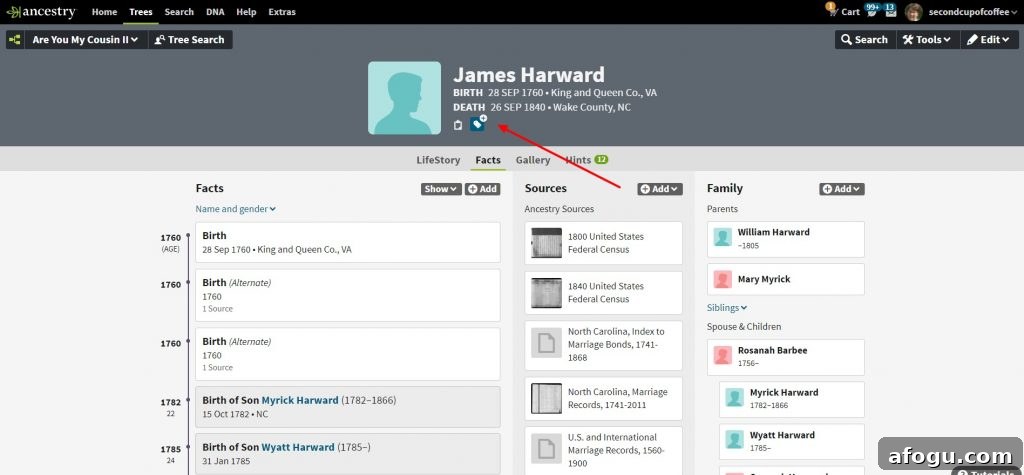
2. Click the blue tag icon beneath the vital information. A workspace opens on the right side of the page where you can switch between MyTreeTags, Notes, and Comments. Stay on MyTreeTags to add or manage labels.
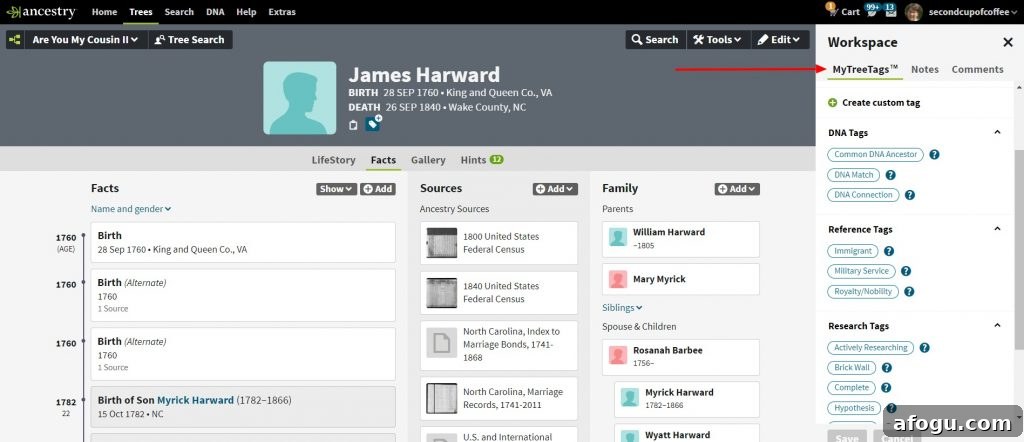
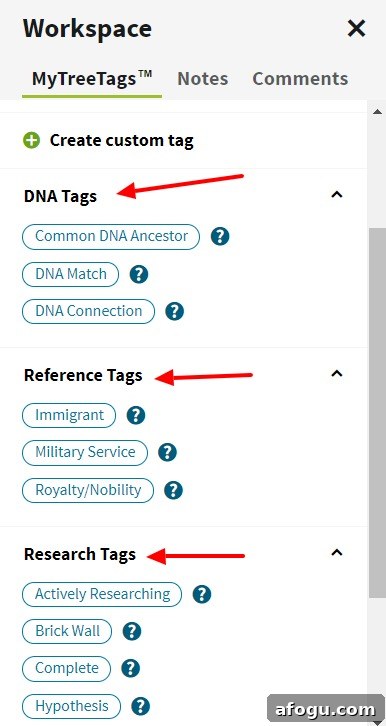
3. In the MyTreeTags panel choose one or more tags to apply. Ancestry provides preset suggestions under categories such as DNA tags, Reference tags, and Research tags, which can save time and keep your system consistent.
If you have many research questions, you’ll likely use tags like “Brick Wall” or “Unverified” frequently — a quick way to group problem areas you want to revisit.
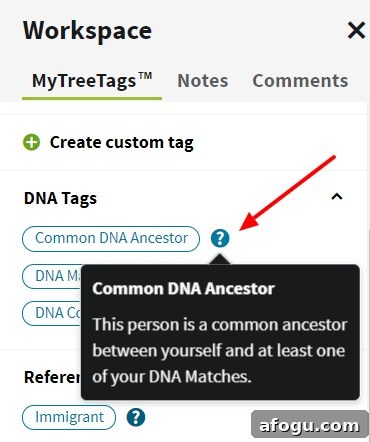
Click the “?” next to any tag for a short description of its meaning and suggested use.
In my example I tagged James Harward with “Military Service”. Later I can search my tree for “Military Service” and quickly find everyone I’ve tagged the same way.

4. You can also create custom tags whenever a preset option doesn’t match your needs. Custom tags might be place-based, like “Surry County, NC,” or occupation-based, like “Blacksmith.” Create whatever labels will help you organize and retrieve relevant profiles.
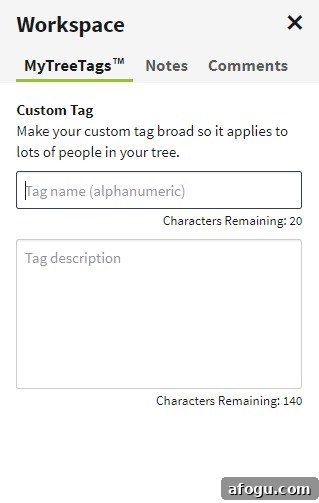
Custom tags let you tailor your organization to your research goals, whether that means geographic, occupational, event-based, or verification status labels.
I enjoy using MyTreeTags to keep my research organized and to quickly find groups of ancestors by topic. Try the tool in your tree and consider how tags can streamline your next research project.
Ready To Learn More About Using Ancestry.com?
- Explore Ancestry.com’s ThruLines — a useful DNA research tool
- Tutorial: Using Ancestry.com’s Card Catalog
- Easily upload and share your family tree across major genealogy sites